# Day 23 Docker -2
Lecture -1 Introduction To Docker and Docker Containers
Docker is open source. To overcome the virtualization
For 6 OS 6 H/W should be bought in the earlier days. At that time virtualization was not there.
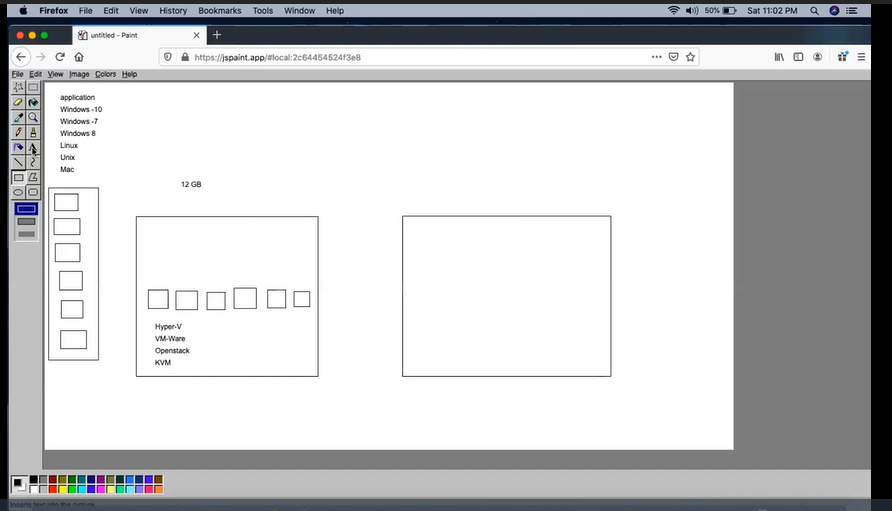
Virtualization comes into the market.
On 1 H/W installing hypervisor/VM ware/Open stack/KVM.
If we put a hypervisor on the hardware we can use it as a virtual device.
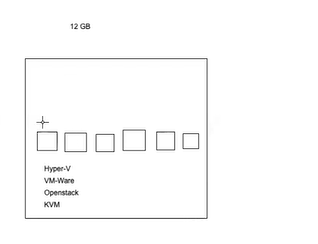
1 resource along with
To overcome the virtualization drawback docker comes into the picture.
The developer develop one application and want to test it in Windows/Linux it requires only libraries and binaries instead it used vm+os+2 gb its using only 250 MB RAM rest is wasted and even more can't share with others.
To utilize the resource in proper format docker comes to the picture.
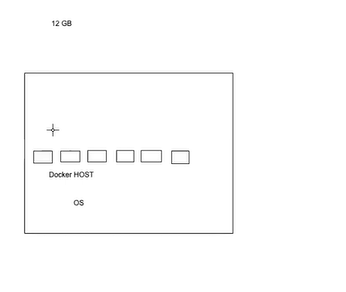
On 1 H/w put one OS. Install the docker package on it and start the docker daemon and start becoming the docker host.
Instead of creating VM create a container and deploy the lightweight image.
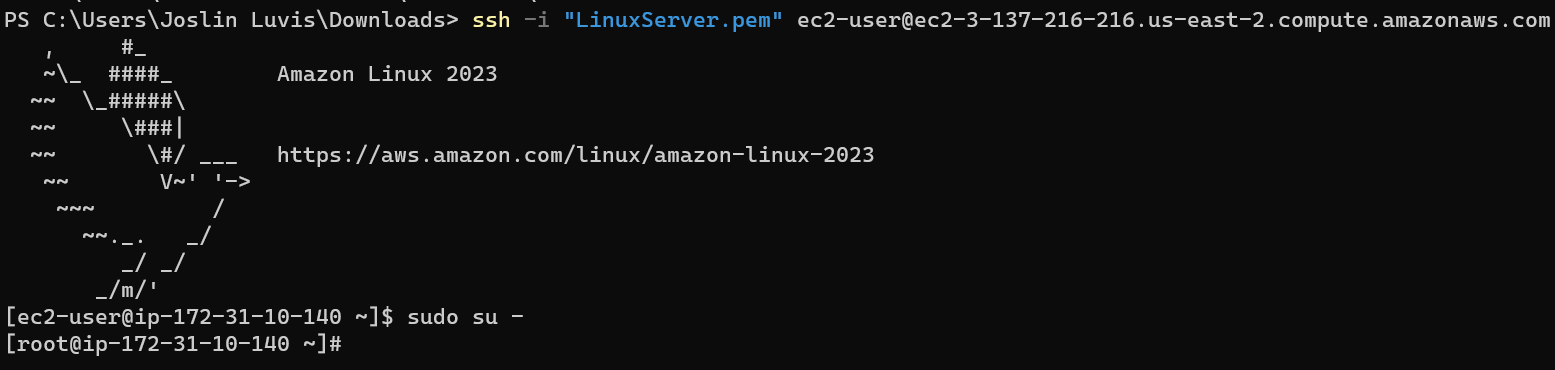
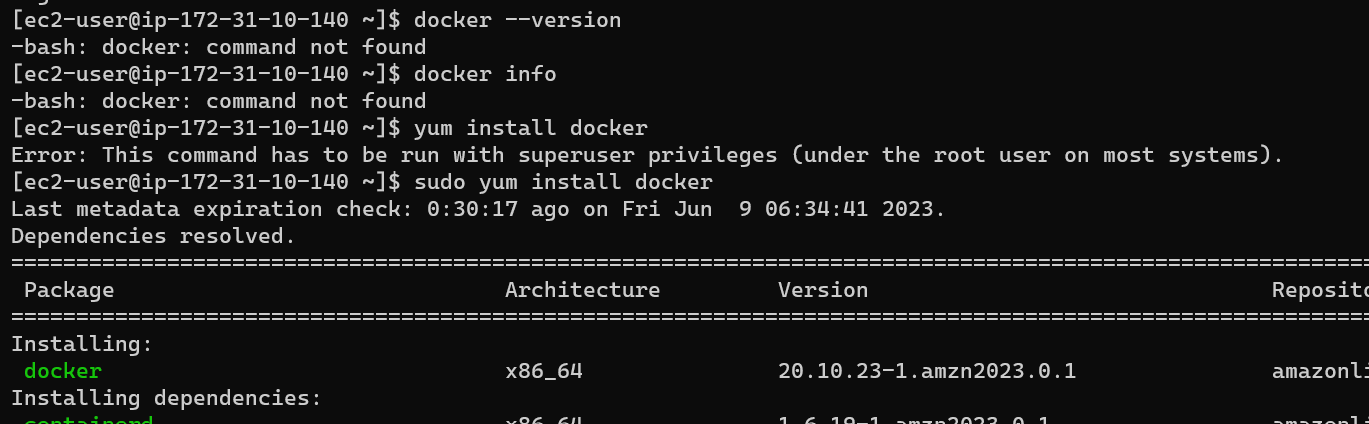
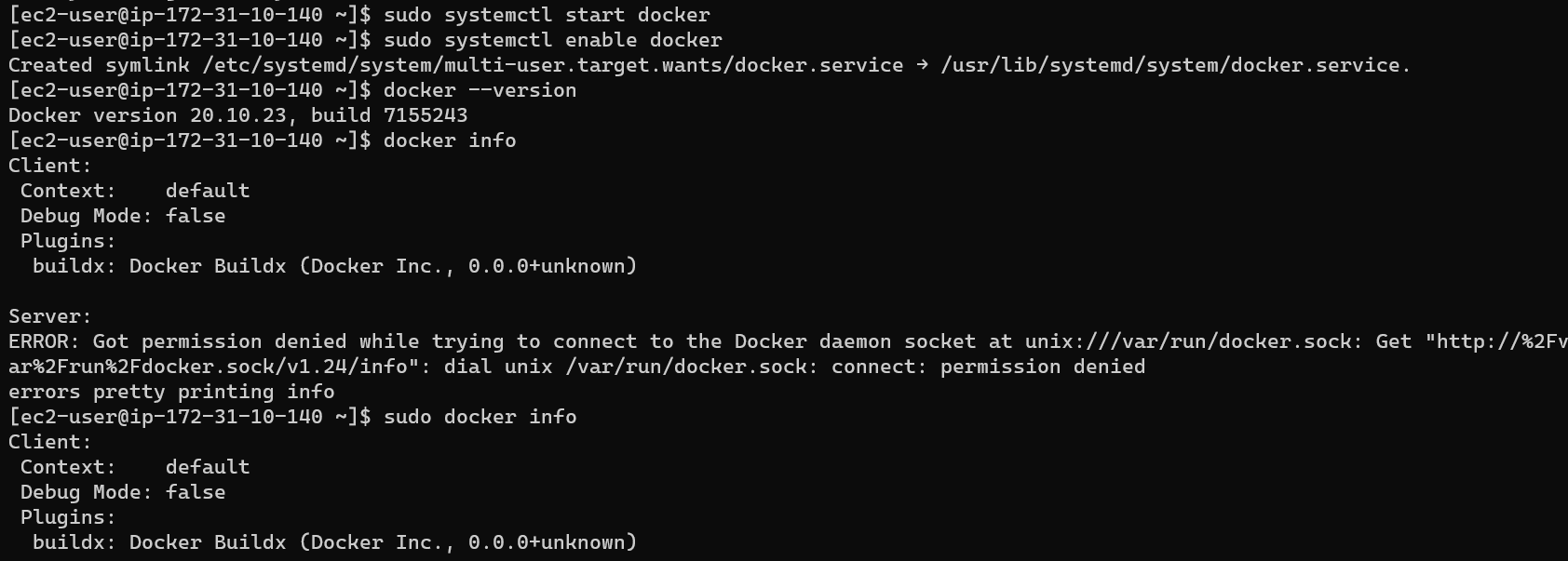
Docker Installation on AWS:

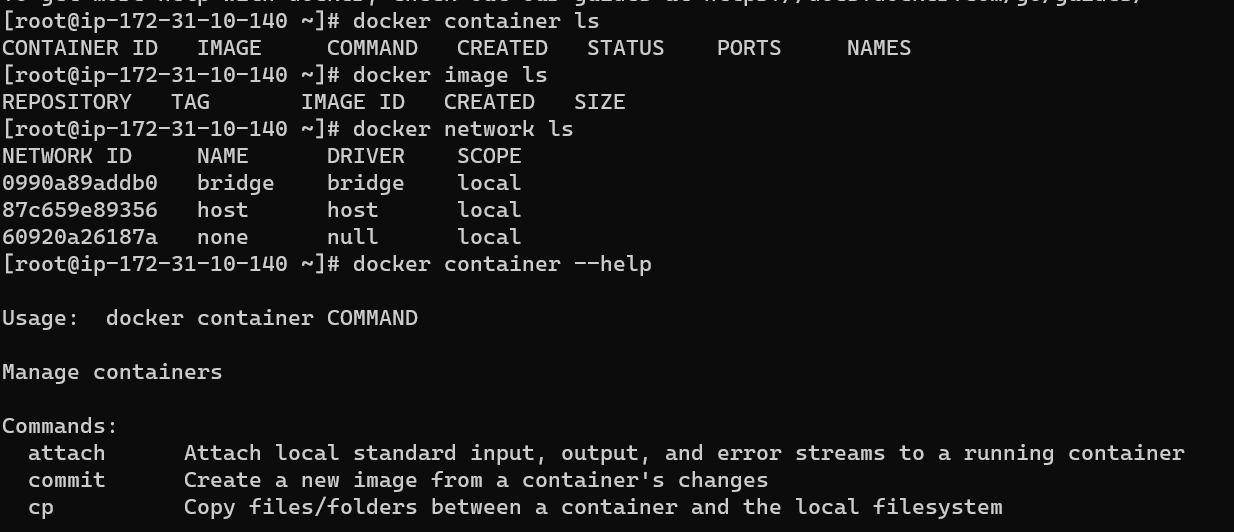
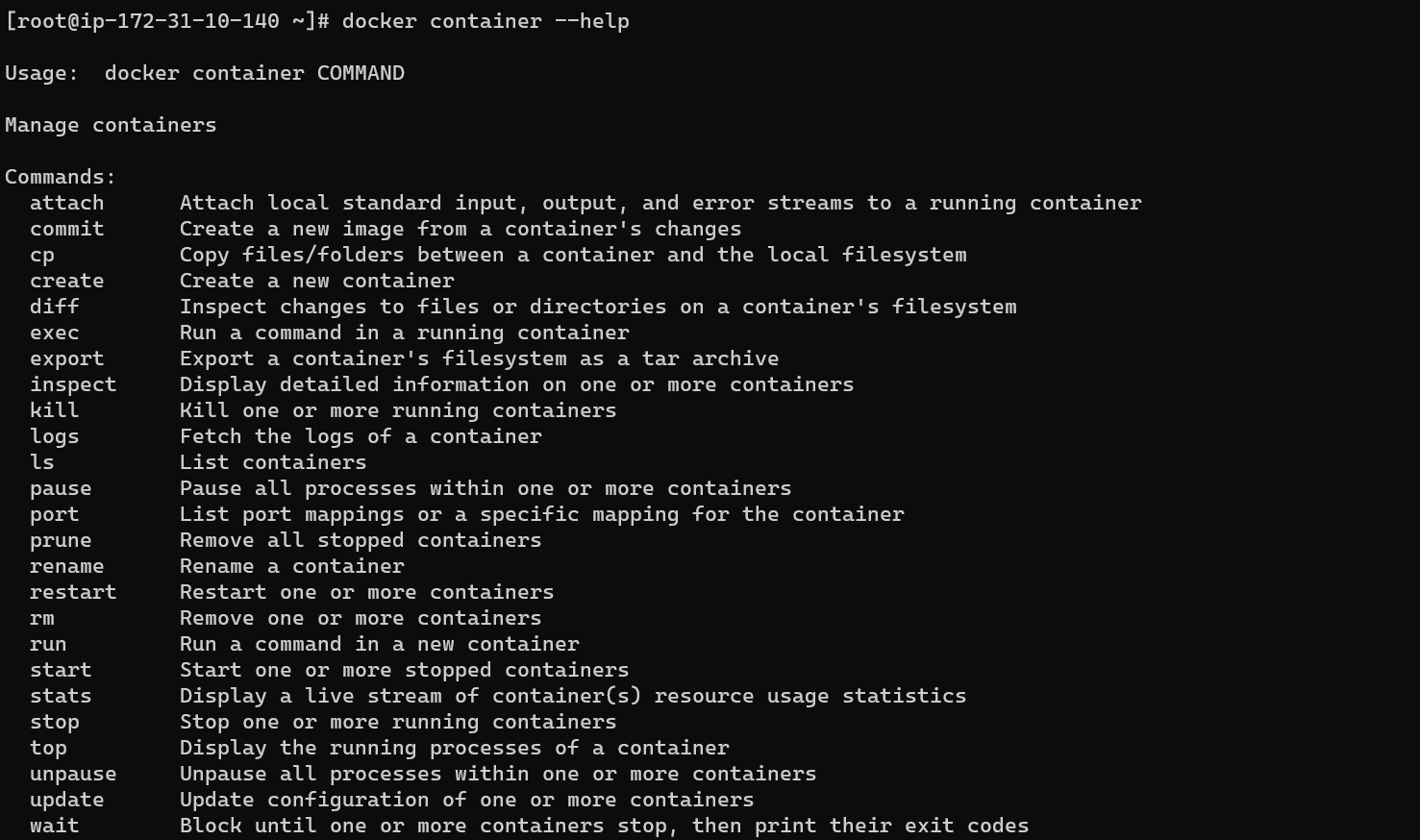
Lecture -2 Docker Container Basic Command create, start, stop, rm
Running container:

Running+ exit/stop container:

Container creating along with image deployment:
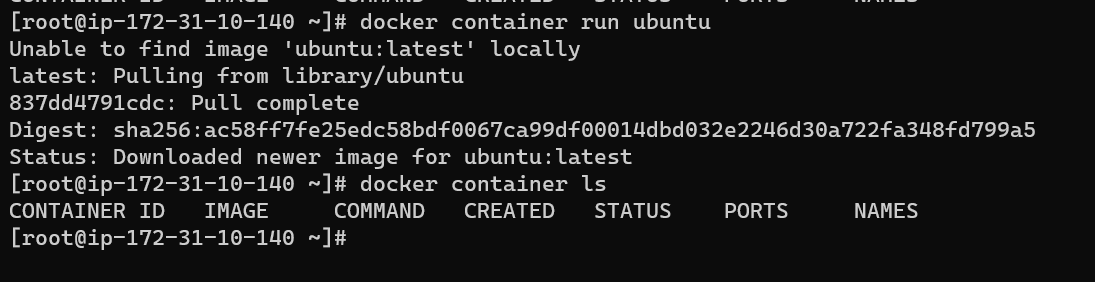
But created a container in a stopped state.

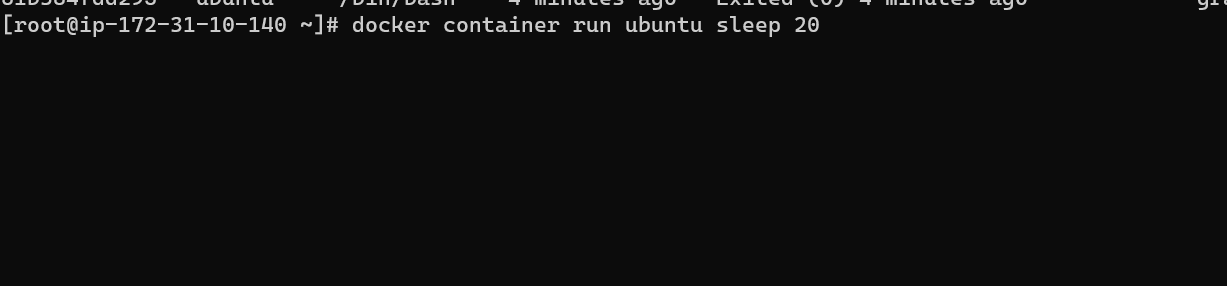

Without making the container busy and running in the background by using -d (de attach mode)

The container should be running for those that will use -it (Interactive mode)

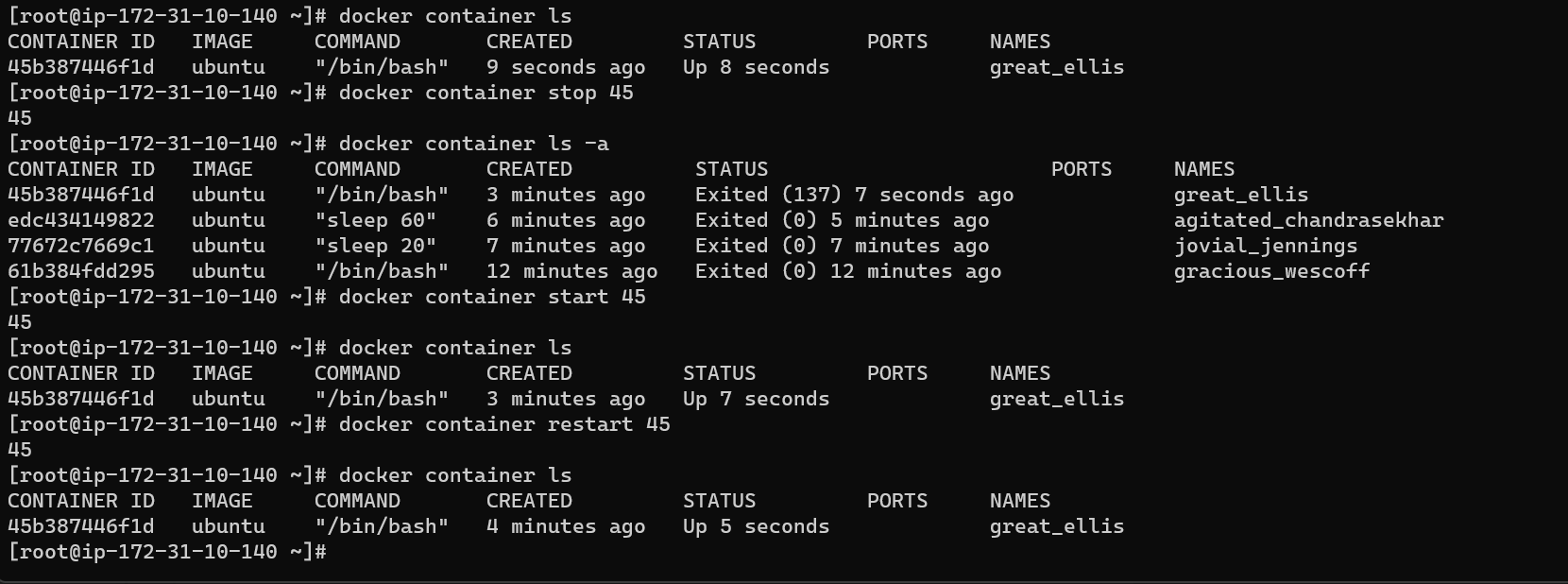
Docker container stop/start/restart.
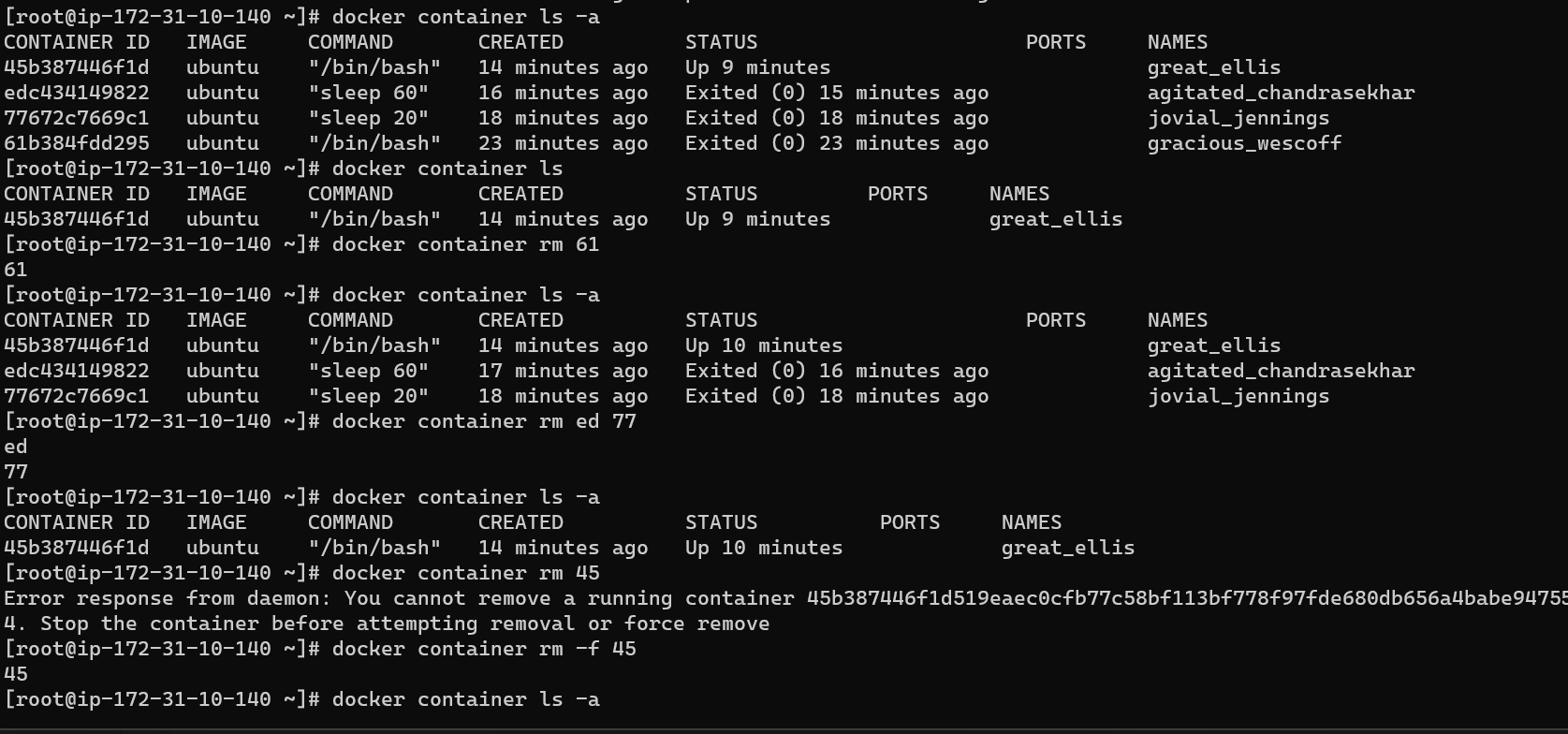
Docker container remove rm/remove of running container by using -f (Force)

While creating a container want to get into that container.






To check the IP for the container by using the command inspect
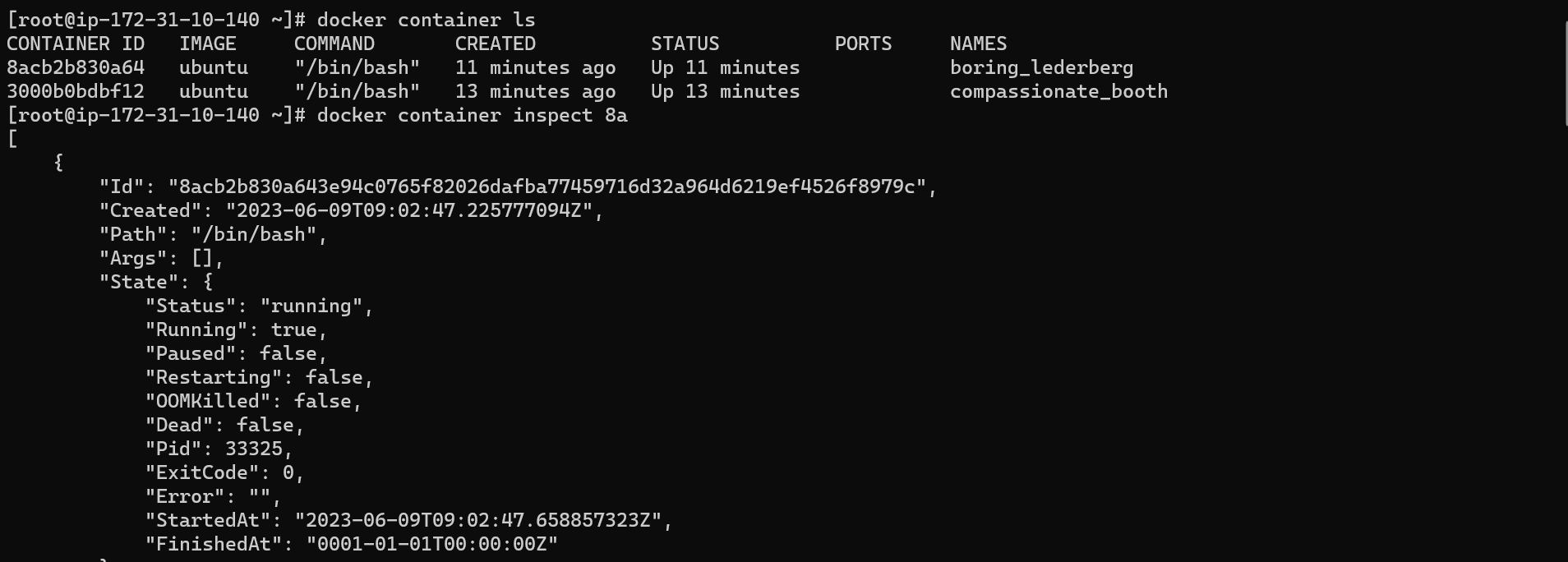
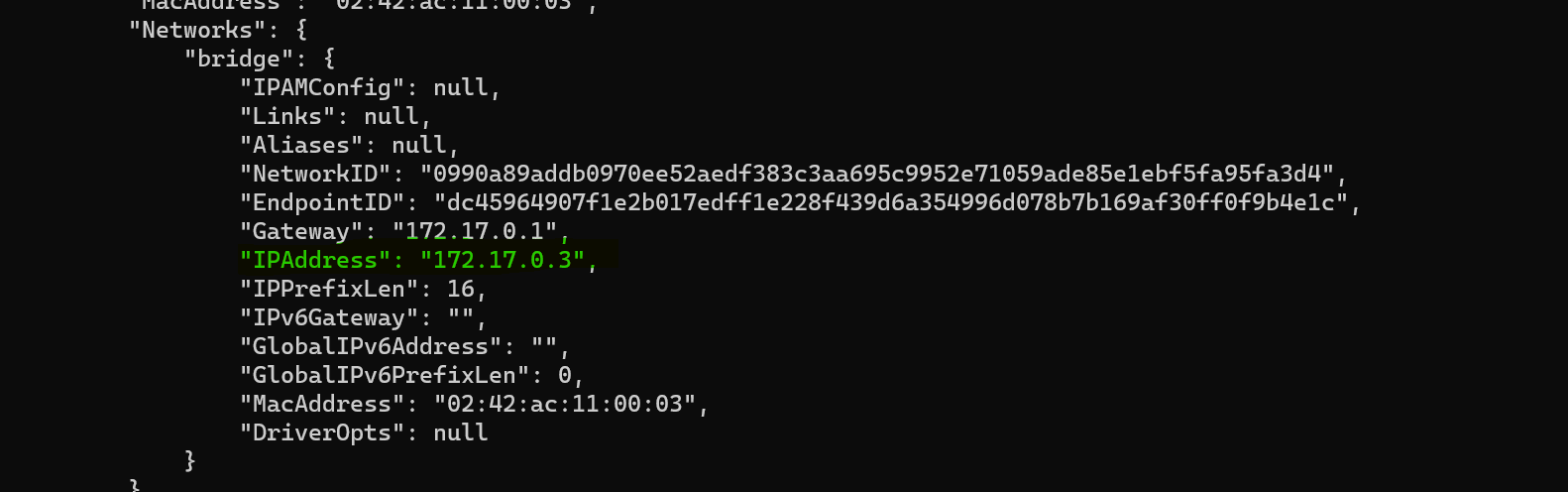
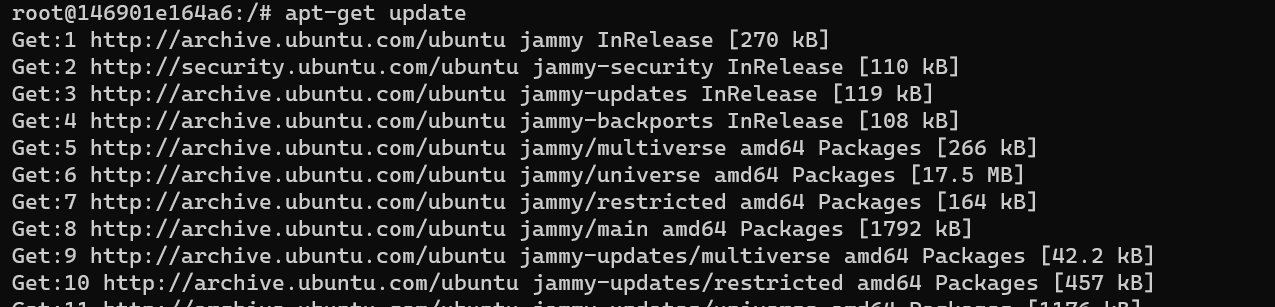
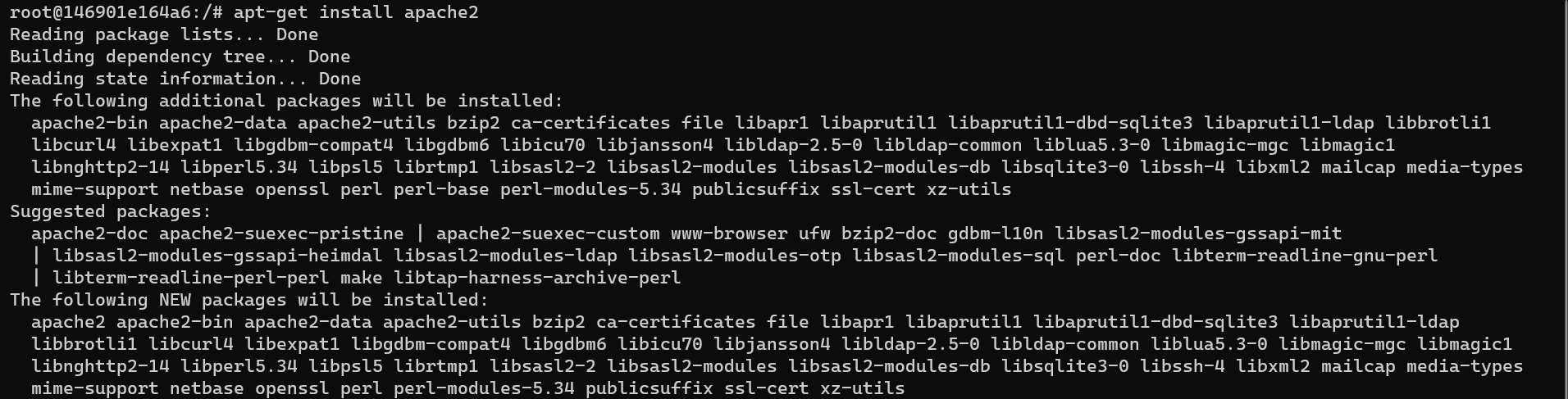
Running the application on the container:

Creating the 2nd application on the container:




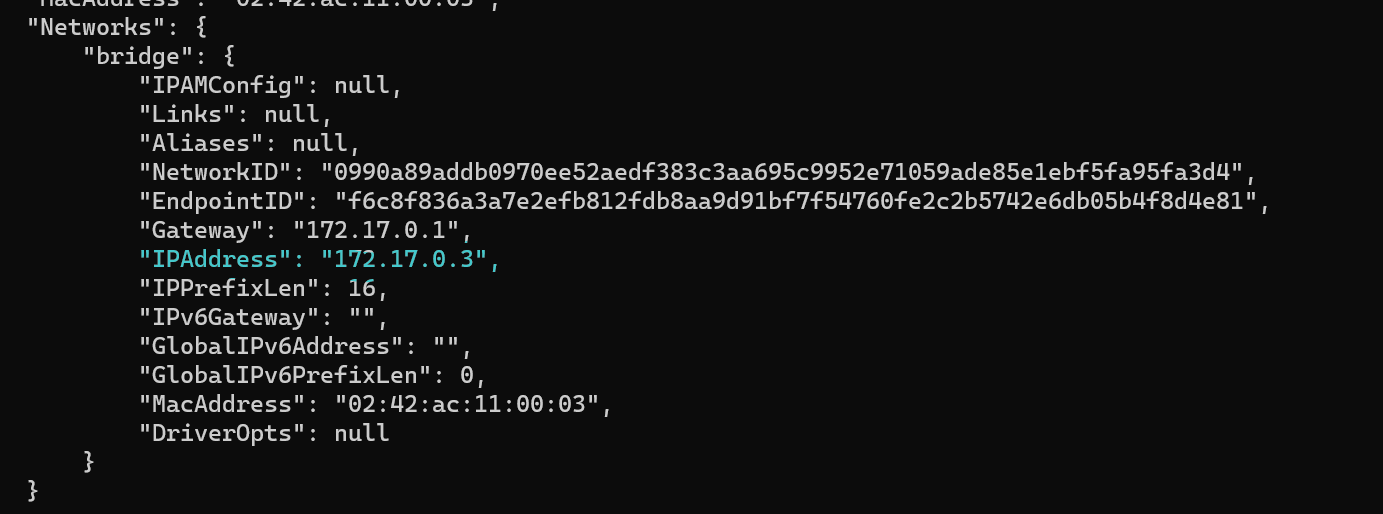

To check the RAM of the container:

Lecture -3 Docker container port, rename, copy, kill, wait, pause, unpause, prune,...
The Docker container will get ip from docker HOST.[Docker package installed and start the docker daemon become the docker host].
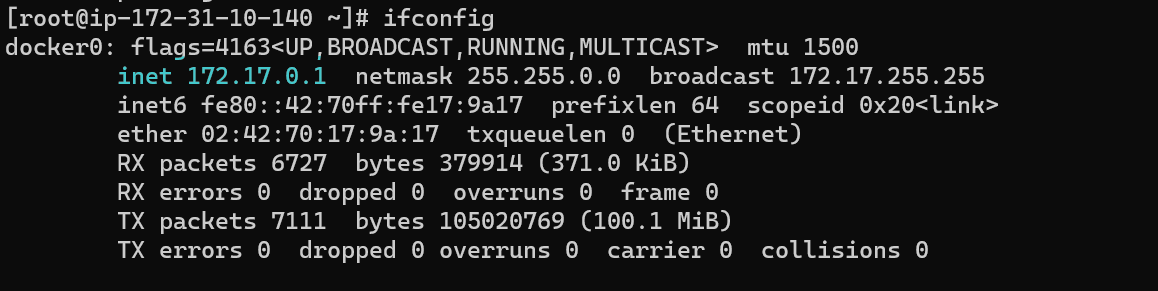
Docker port mapping :



To come out from container ctrl+P/ctrl+Q


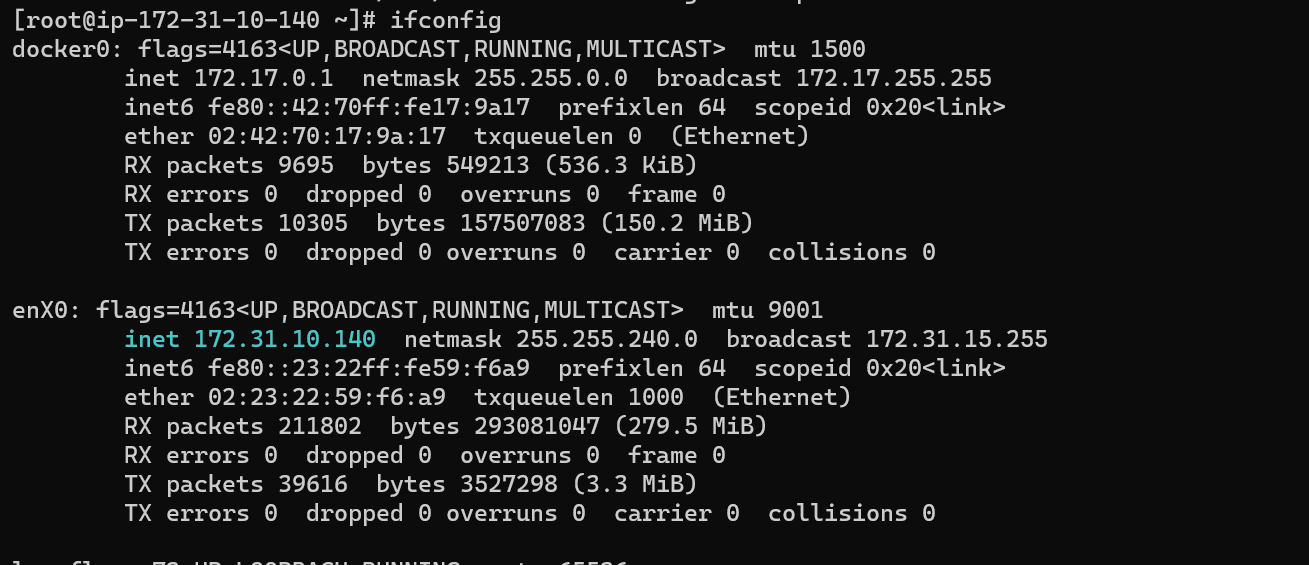
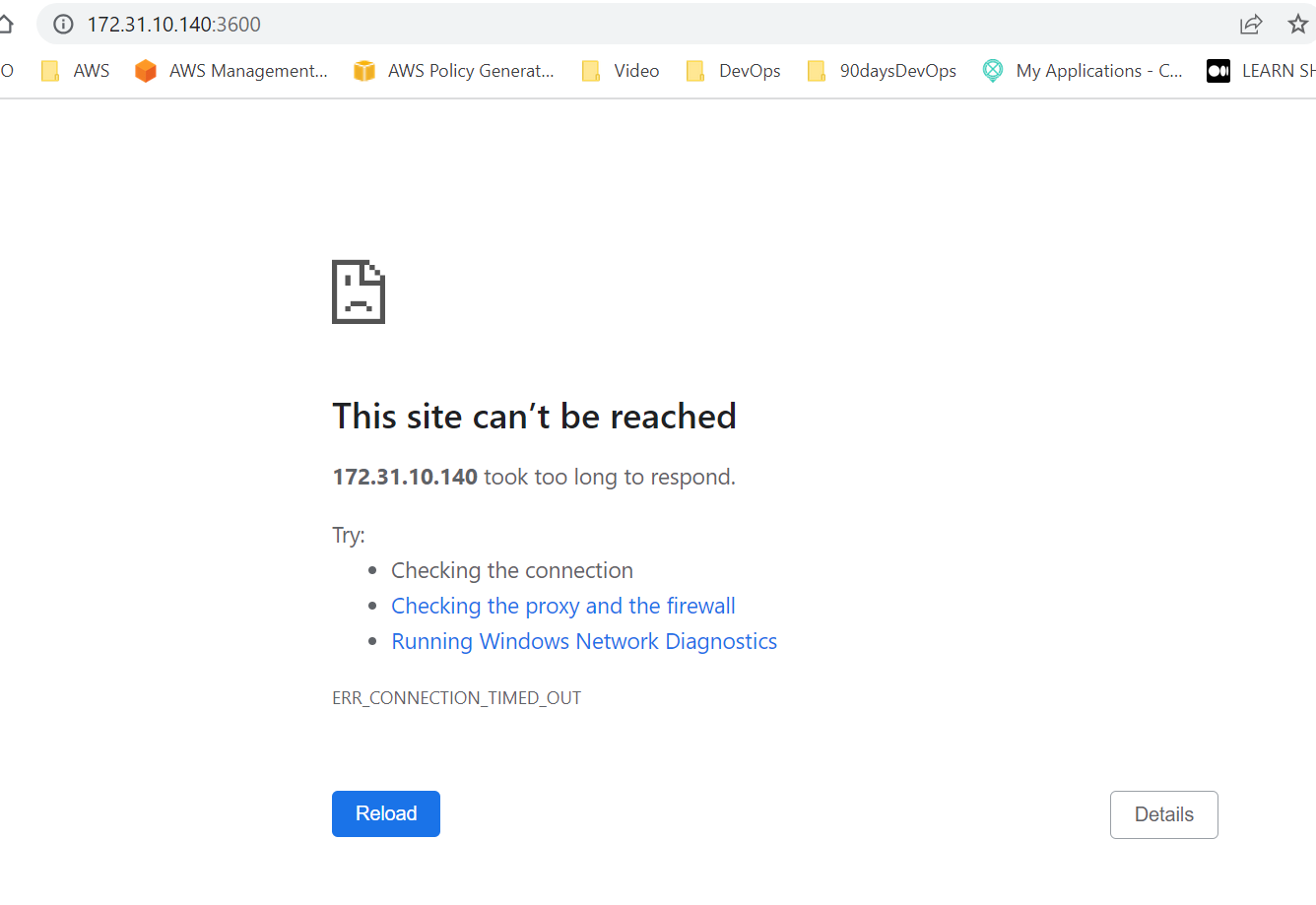
Docker host has been created in AWS and is not authorized to private IP but we can access public IP with the Inbound rule.
Container rename :

Giving a specific name to the container while creating it:

Get it into the container by using attach command:

How to pause/unpause the container:




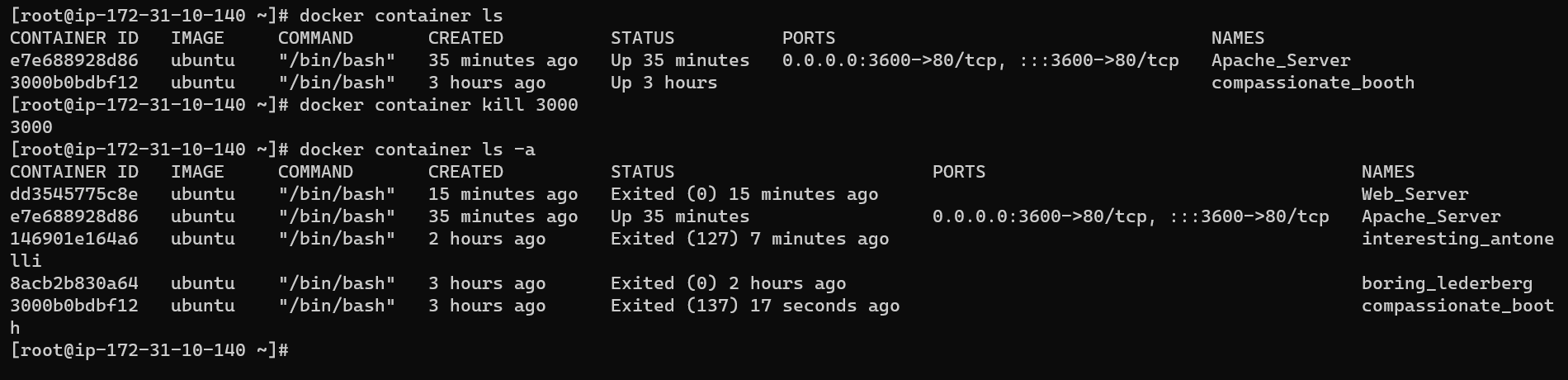
How to kill the docker container
difference between a kill and stop in docker.
Stop- gracefully stop the container and kill will forcefully stop the container.
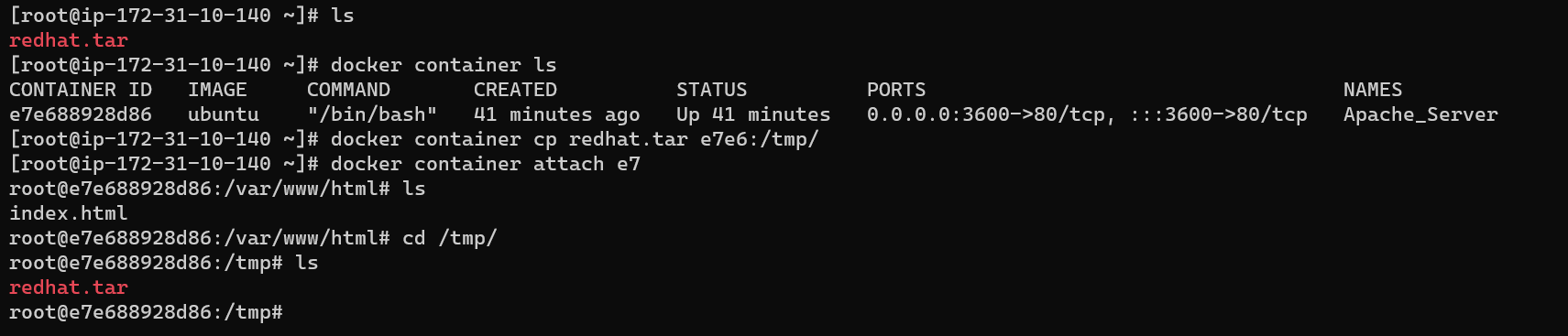
How to copy the folder to the container:


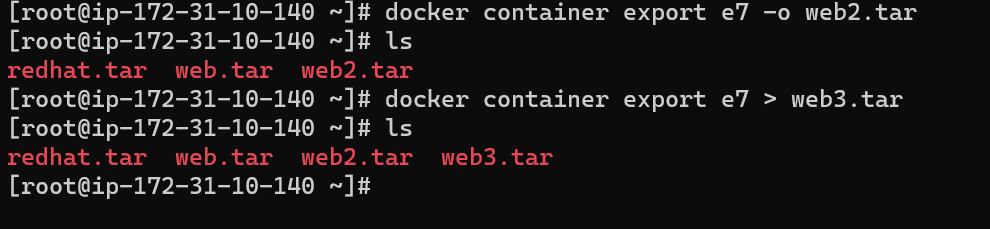
How to share the docker container with your friend to access from another docker host:(By using export/import)
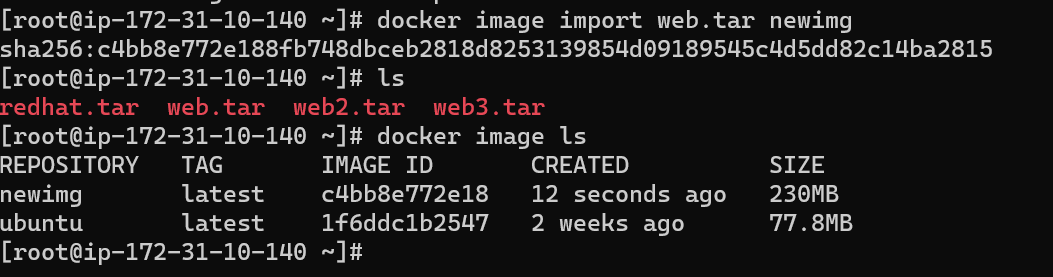
Docker image imported by giving image name:

To create an image for a running container:

Image deployment:



